
Text Flowing Like Liquid
Writers are constantly moving text between apps, and rarely do the various apps honor each others’ formatting quirks. We solved this problem in Minimal. Now, when writers share notes between Apple Pages, Google Docs, email clients, other apps, Markdown files, and other texts, Minimal seamlessly persists the intended formatting and structure. Notes arrive fully formed, and they depart ready for the intended destination. All of this happens invisibly.
This is a big update. Originally, we built a conversion engine to support importing notes from other notes/writing apps (a common feature request) and exporting to popular file formats. Once we had that system working, we realized that there were countless places where writers import and export text, and that with a thoughtful design we could truly support it in a frictionless manner. As we set out on this redesign/rebuild, our goal was to make “text flow through Minimal like liquid.”
We’re thrilled about the outcome. Most of all, we’re thrilled that many of these improvements are completely invisible, with text simply doing what the writer intended, without any fancy interfaces or dialogues.
Export
While Minimal has long-supported exporting in PDF and HTML, exporting is now much stronger with better formatting alignment and new file types, including Rich Text (for Apple Pages, Google Docs, and Microsoft Word) and a new Minimal-specific proprietary format called MNML.
Export options allow writers to choose exactly how the new file is constructed, and various export destinations allow rapid workflows. For example, Copy-as-File enables writers to quickly move a note into the file system or into a different app.
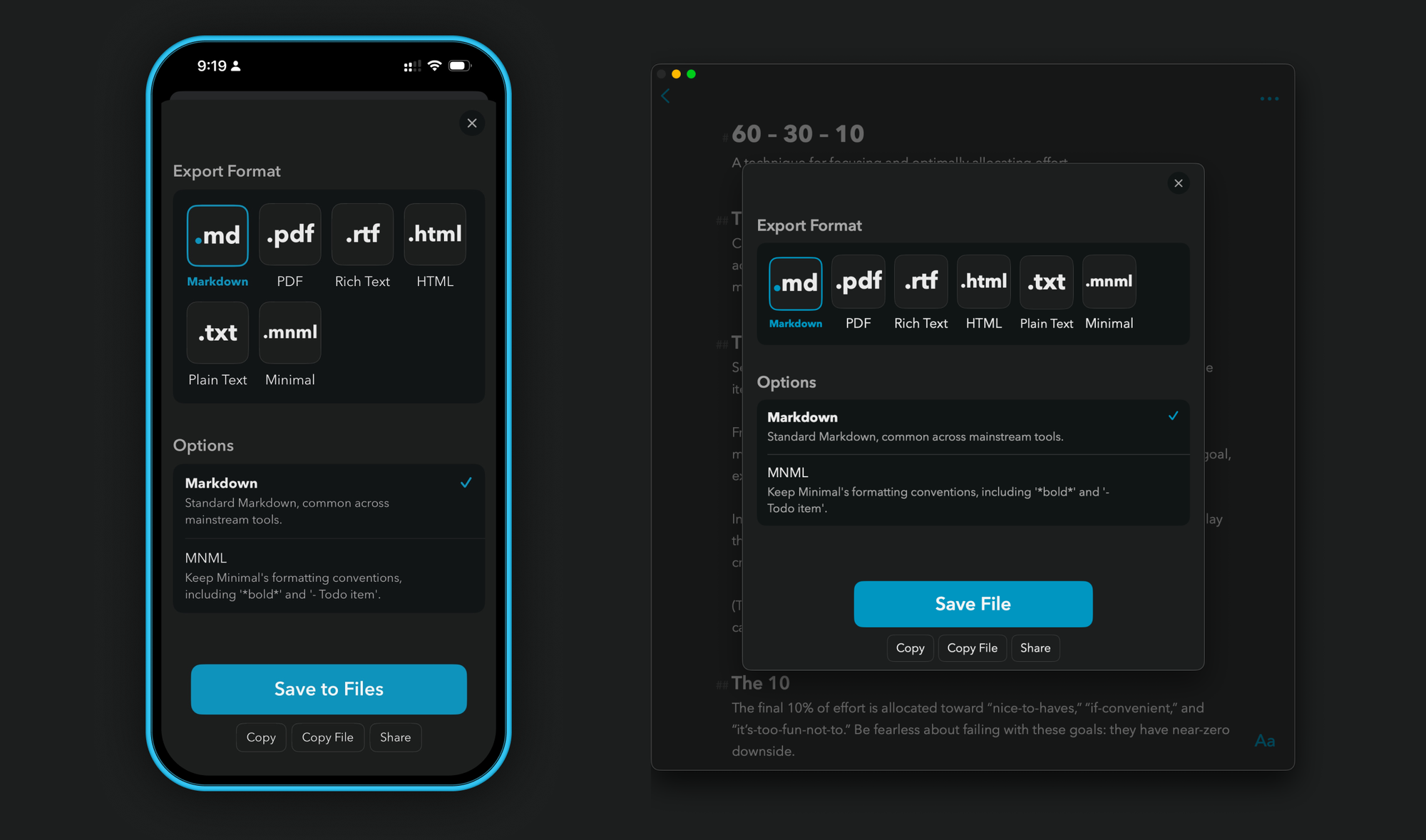
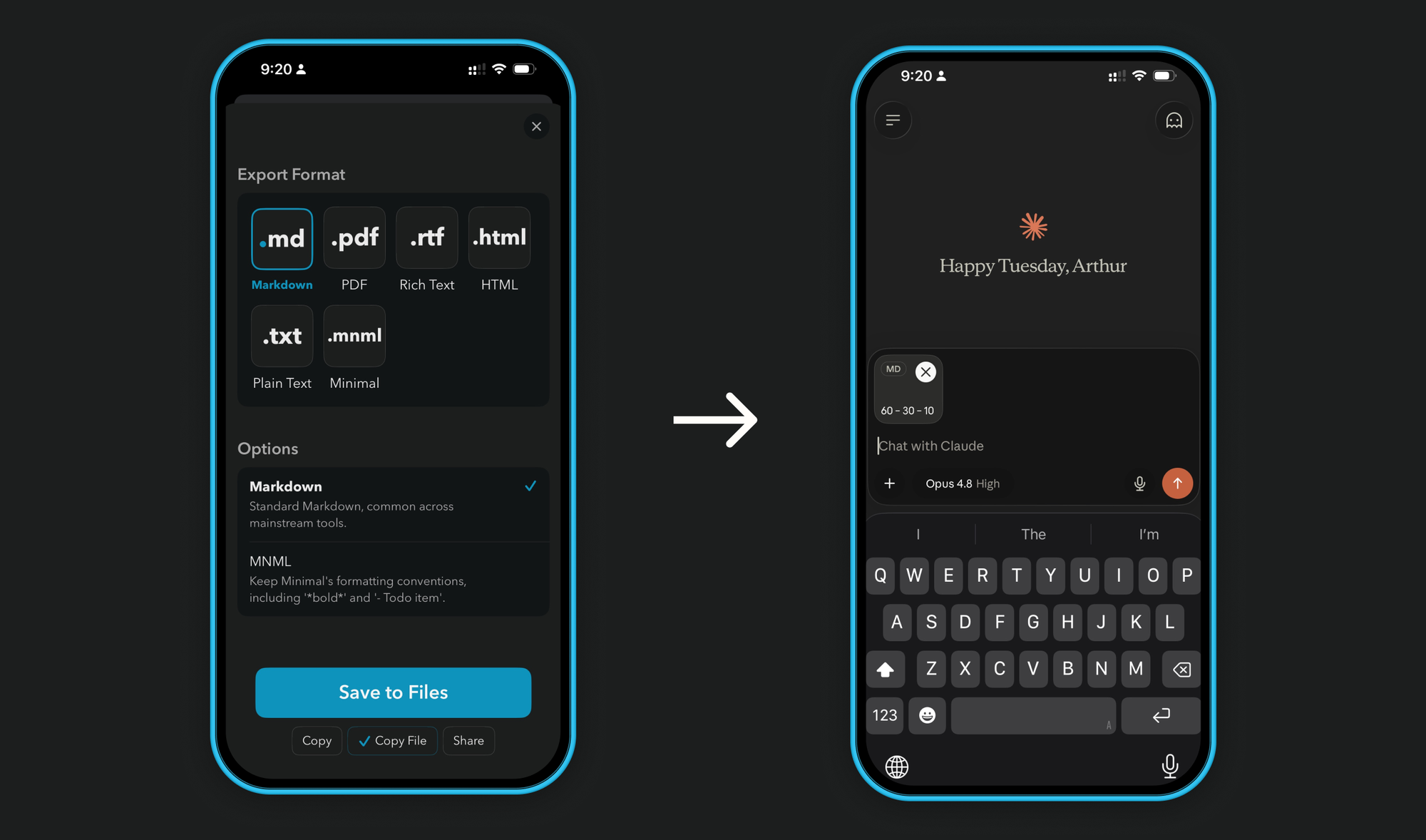
Quick Export is available on Mac and iPad with command-option-E. Quick Exporting applies the last-used export options right away, supporting incredibly rapid workflows. One of our favorites is to grab a file from Minimal with Quick Export set to Markdown and Copy-as-File, then paste it into a Large Language Model like Claude or ChatGPT to enrich the chat with well-formatted context. It is great for moving technical documentation to wherever it needs to go.
Copy-Paste
One of the biggest, most high-touch surface areas in any writing app is copy-paste. Writers move their text across apps every day, and they dominantly use the simple copy (command-C) and paste (command-V) method. Each app uses its own formatting conventions, and our conversion engine makes it possible to transform writer’s text into the correct format, no matter the destination or origin app.
For example, in Apple’s Pages text is expressed as Rich Text, while in Minimal text is expressed as a form of Markdown. Since our conversion engine seamlessly handles converting between these formats, copying and pasting maintains writers’ nuanced formatting. During copy Minimal converts its Markdown into Rich Text, and during paste Minimal converts the incoming Rich Text into Markdown. If writers are instead pasting into TextEdit (Plain Text), or Apple Messages (Rich Text), or most email apps (HTML), or anywhere else, the text lands in the correct format. It all happens invisibly, with text simply moving across apps as one would most optimistically expect.
If writers prefer to drop the formatting altogether, they can use Edit > “Paste and match style” to treat the text as Plain Text (the keyboard shortcut is command-shift-option-V).
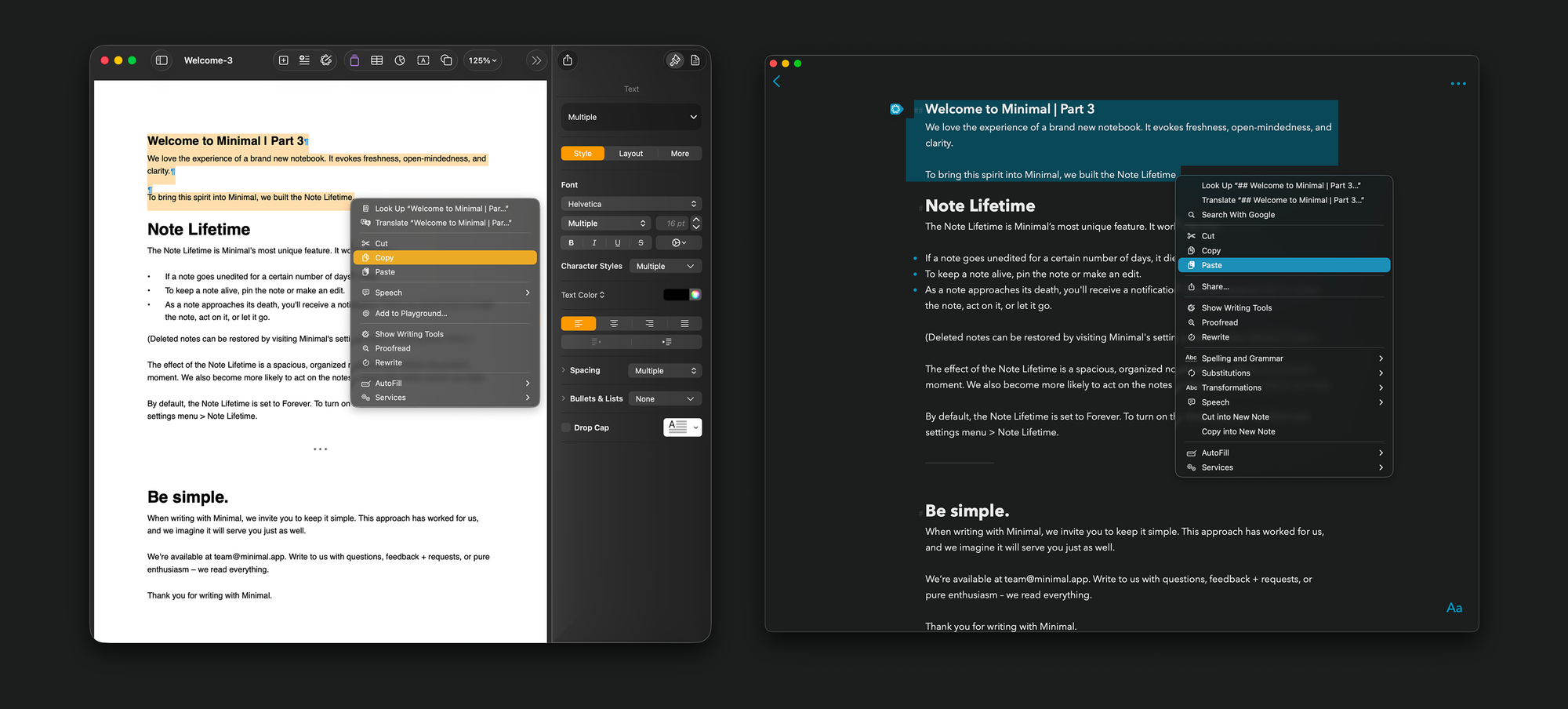
"Our goal was to make text flow through Minimal like liquid."
Drag-and-Drop
Drag-and-drop is a high-touch surface that deserves first-class file format conversion. Writers can drag one or more files into Minimal's notes list and receive brand new, elegantly formatted notes. Dragging a file into an existing note will convert the file then insert its text at the cursor. This works especially well for pulling in Markdown from other notes apps and editing in the cleanest possible environment.
Dragging a file into Minimal creates a new note, elegantly formatted and ready for edits.
Finder and Files
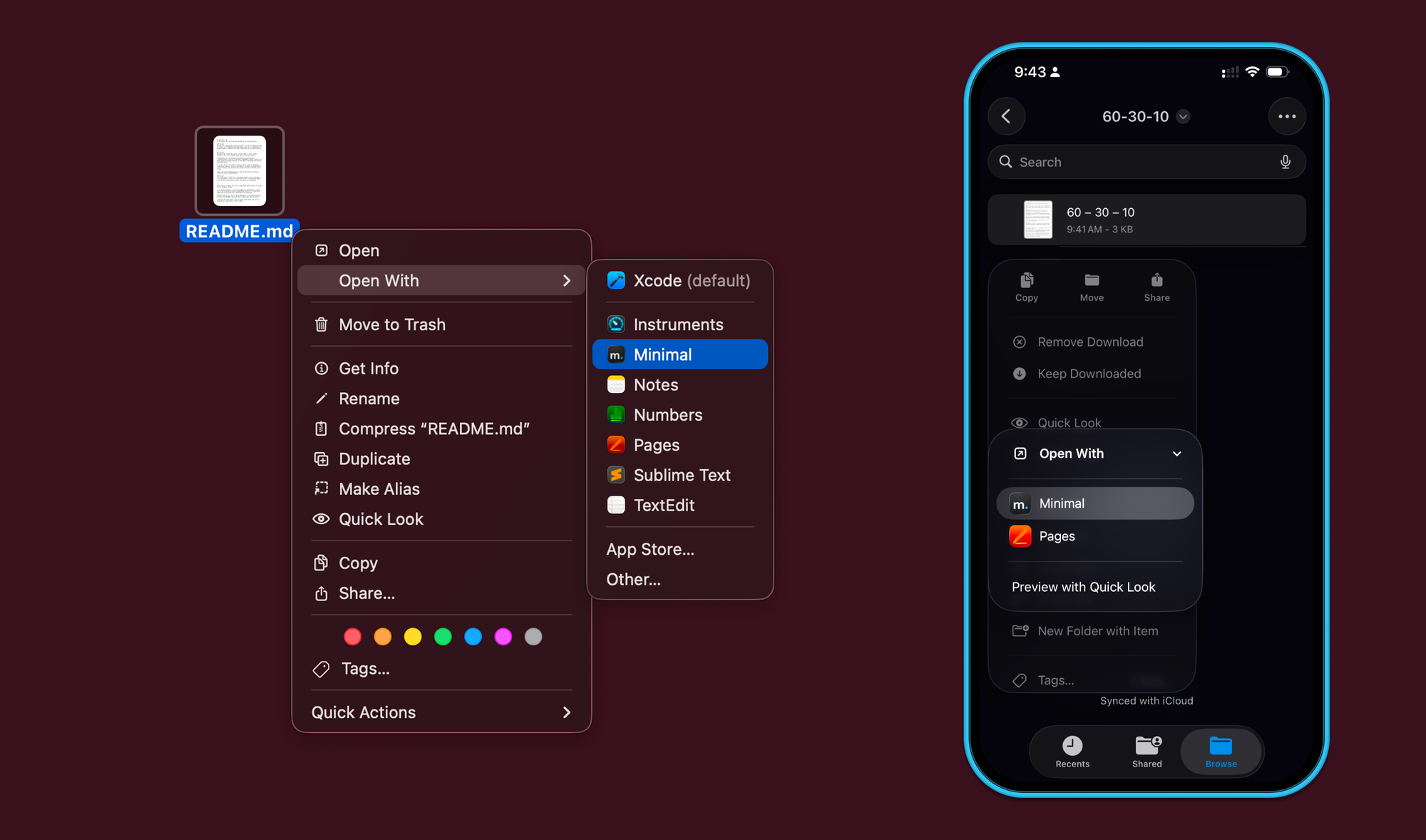
Our most committed writers make extensive use of the Files app and Finder for organizing notes and documents, and now Minimal is a first-class “Open With” destination for Markdown, Rich Text, and HTML. Simply right-click on a document, choose Minimal, and a new note will appear, honoring the document’s original formatting and structure.
(The original source document will not be changed; "Open With" is an import-only flow.)
Bulk Imports, Bulk Exports
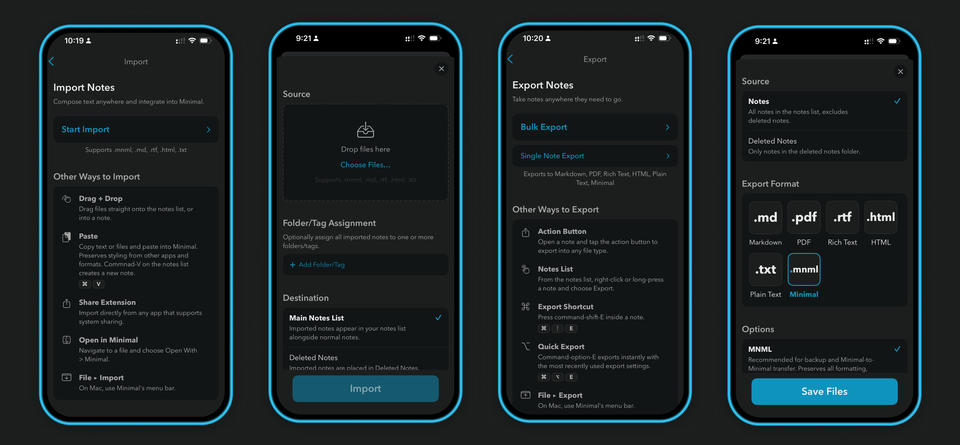
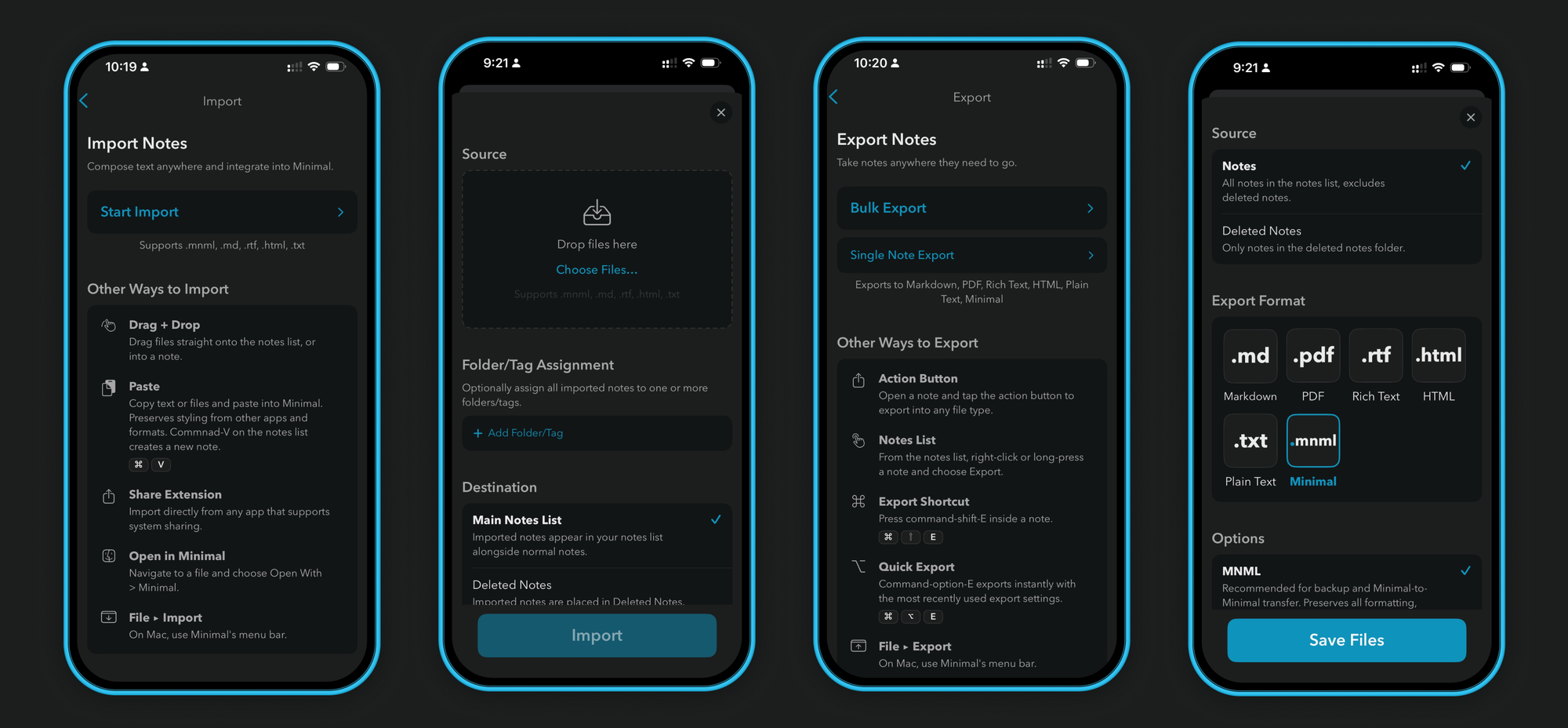
Bulk imports and exports were the original features we set out to support. Writers’ notes should not be constrained, so we designed this flow to support nuanced settings. For example, importing notes supports applying one or more destination folders to keep notes organized even as hundreds or thousands of notes arrive in the notes list.
When exporting, writers choose their notes, specify the export format and export options, and then choose a destination.
When importing, writers choose their files, optionally specify folders/tags, view a staged import with reports of lost formatting (if any), and then commit the import. Some writers want the imports available for search, but not in the notes list, so the “Deleted Notes” collection is listed as an available import destination.
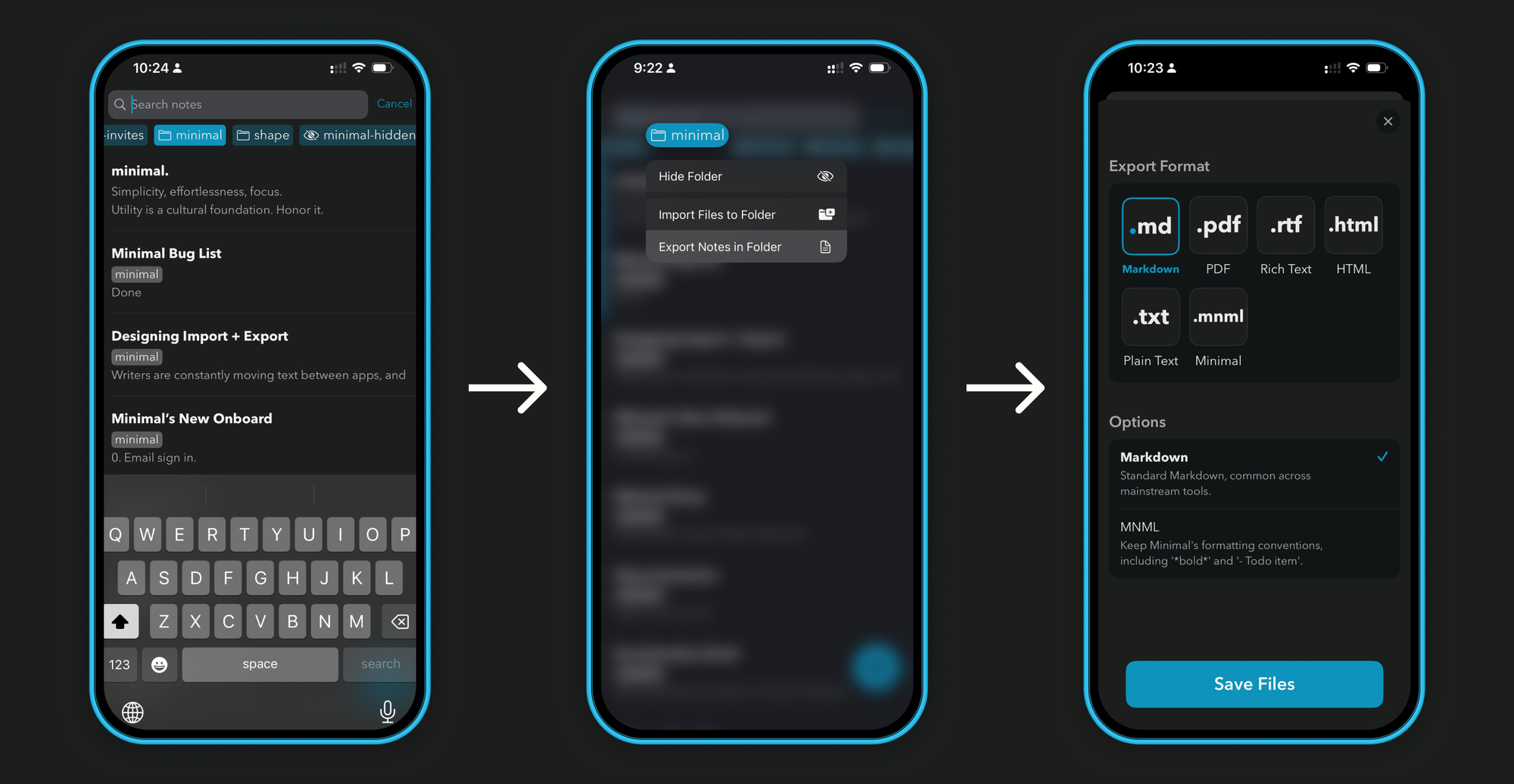
Writers can right-click or long-press a folder/tag to export that specific sliver of notes.
For reliability, we tested bulk imports and exports with many thousands of notes. We’re very pleased with how this system came together.
MNML Perfect Round-Trips
Archival, back-up, and transferring notes from one Apple ID or device to another is a very common pattern. We realized that we have an opportunity to perfectly support this. We built a proprietary file format (.mnml) that exports and perfectly re-imports. Since we know that Minimal is the only app that writes to this format, we can confidently re-import with exacting precision, perfectly maintaining writers’ formatting with zero structural degradation.
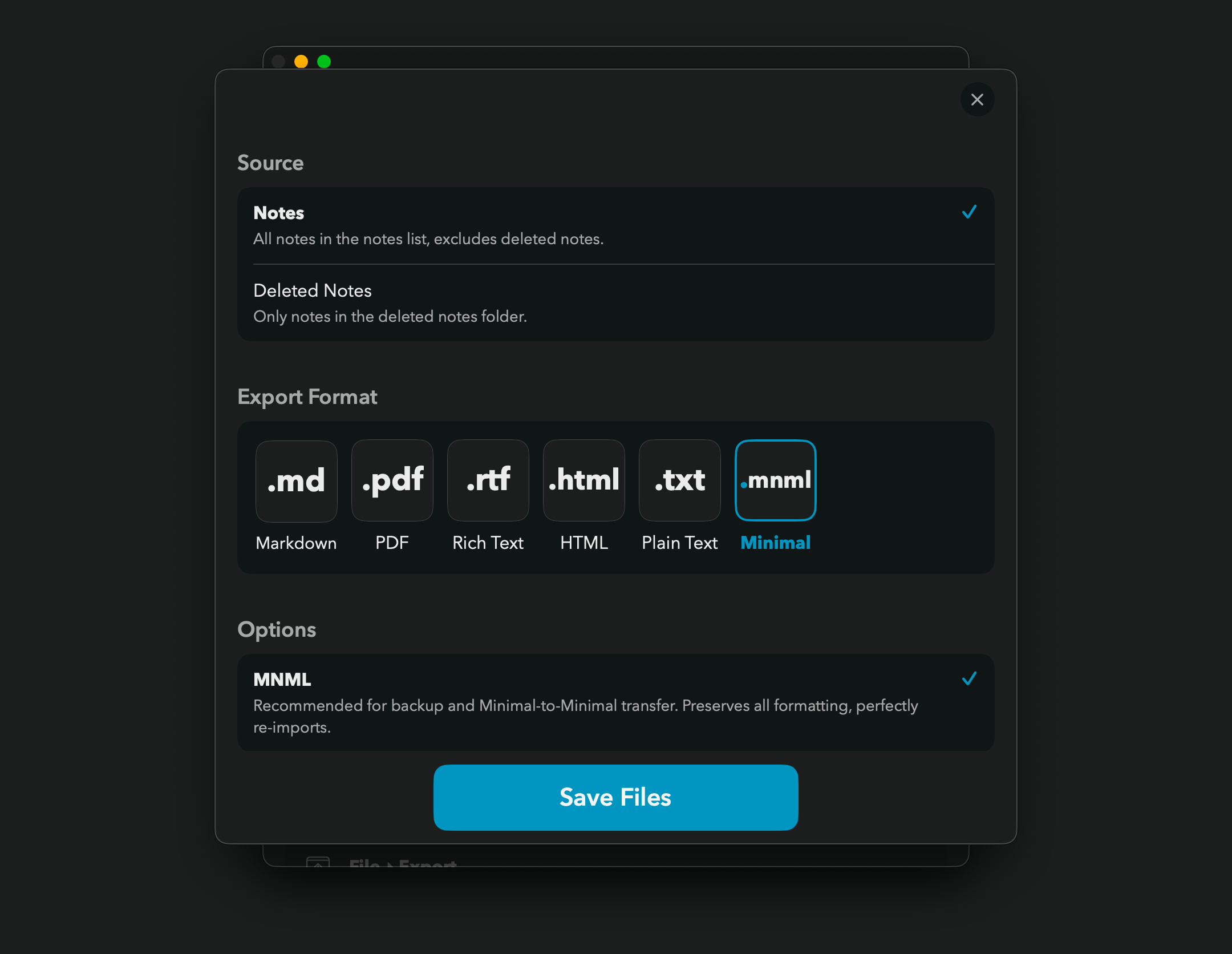
.mnml file type, writers can run bulk exports and bulk imports for all of their notes, maintaining perfect fidelity. Working on Minimal is a delight. It happens over and over again… we set out to accomplish something seemingly straightforward and mundane, like Import and Export, only to realize that there exists subtle nuance and strange idiosyncrasies – like the various ways writers copy and paste, or drag-and-drop – and that if we are sufficiently thoughtful we can make it all work invisibly.
We realized early on in this design process a clear goal: to make text flow through Minimal like liquid. By thoughtfully removing friction and hiding away the utility, by resisting the urge to draw up an interface for every interaction, we knew that Minimal could be a place where text moves freely, allowing writers to take a less technical and exacting approach and instead cultivate an open mind.
One of the primary attributes of Minimal is the way utility hides behind a simple interface. We love that our conversion engine – a beast of complex code – is often invoked with barely any interface at all. Beyond bulk imports and exports, and beyond the file export, there is barely any visual suggestion that the conversion engine is working in the background. Instead, it just works, invisibly, with notes manifesting exactly as writers intend.
Thank you for reading about Minimal’s design process. If you’re a paying member, thank you for supporting our team. We wrote a more technical piece about our conversion engine, available to read right here.
Written by a human.